

3ds Max Exporter to Postshot Exporter for Gaussian Splatting
3ds Max Exporter to Postshot for Gaussian Splatting models
Gaussian Splatting allows high quality and performant 3d experiences for the web – both for scanned objects and 3d models.
You can just render your images from a 3d software like 3ds max and import them into Jawset Postshot – with this workflow postshot has to estimate all cameras which not only takes additional time but the alignment of cameras will be estimated and herefore be less accurate.
The maxscript based tool for 3ds Max provides a solution to create a camera animation, export camera positions as a .csv (comma seperated value) and a .ply for the initial point cloud (ply is old and flexible, but postshot just wants point coordinates and vertex color data).
Here is an example for a Gaussian splatting model in the Supersplat viewer with SOGS compression:
Video Tutorial
Workflow Part 1: Camera and rendering
You can start the script in 3ds max with Scripting->run script-> and select the mse file.
To create a 360 gsplat for an object, images from different angles are needed. Similar to photogrammetry ring based camera rigs are possible but it is often better to use the vertices of a spherical object (like a geosphere). Here the cameras have an more equal distance in longitude and latitude. For interiors other camera rigs will work better like cameras animated on a path in different heights – but I have not made any tests with interiors yet.
To create a Geosphere with the button „create geosphere“. Adjust the size/position of the geosphere to make it bigger than the object.
Since the amount of images rendered will correspond with the vertex count of the geosphere, the geosphere’s segement count is important. According to my research 200 to 400 images seems to be a good amount of images, the segment count of the geomsphere is automatically set to 5 resulting in 251 vertices – but you can experimant here.
Create a physical camera with target with the button „create camera“ or use an existing camera.
In the UI’s „camera to vertex animation“ rollout pick the physical camera and the geosphere as geo (they were automatically picked if you used the buttons to create geosphere and camera). Then press „animate camera“ button.
The camera should now be animated. Don’t forget to adjust the focal length of the camera and the target’s position.
For training png’s with alpha are best, as far as I understood 3840 px is the max resolution supported by postshot but 1920px also gives good results.
Workflow Part 2: Export csv
The csv file contains the camera positions, orientation and focal length for every rendered frame. CSV files can be opened with Notepad++ to check for errors. It is very important that the filenames in the csv match the filenames of the renderings – otherwise the csv will not work.
To create the csv adjust the time values in the field „from frame“ and „to frame“ if needed. In the script window add the cameras to the cameralist (you can add more than one camera).
The filename is constructed with:
prefix + cameraname + separator + 4digits for the frame number + extension.
Folder names are not required. Press „export csv“ and save the file in the same folder as your renderings. It seems the filename of the csv itself is not important.
Workflow Part 3: Export ply
The ply file contains the initial point cloud to train the gsplat. The exporter will export all vertices and optionally vertex colors from the picked mesh. Faces and other data is simply ignored. So for simple objects you could even pick the original meshes vertex data, for multiple object or complex objects it is better to create new a sparse point cloud for the objects.
I used the free version of Tyflow to create my point cloud but there probably are more ways to do that.
In Tyflow I just made a birth event with 1-5k particles, created an „object position“ to scatter somewhere on the surface and add a Mesh node with „mesh type“ set to „point cloud“ and disabled the „render only“ option.
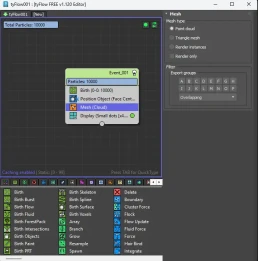
The ply file needs vertex positions and vertex colors.
Black vertex colors for the whole mesh seem to not work in postshot in my tests. That’s why the default is set to override vertex colors to grey. If you want to use custom vertex colors you can do that with vertex color channel 1 but I got nice results just with grey vertec colors.
Faces are ignored during export and only needed in 3ds Max if you want to use custom vertex colors.
Now save the ply in the same folder as the renderings and csv.
In postshot just drag the whole folder in the window and the „import cameras“ option should be selected automatically.
In my tests the Model profile Splat MCMC has generated much better results for individual objects like the EV and chairs so I would recommend to use that one.

Now start training and see your model buildt up. In postshot watch for any warnings in the Log window on the right side.
Download:
just drop me a line at info@deepframes.com if you have suggestions for improvement
Version history and changelog:
v 0.12 bugfixes including max 26 compatibility
v 0.1. initial beta release
Current Limitations:
- point cloud export is slow with high numbers of points due to a maxscript based implementation
- parenting the camera or the point cloud can lead to unexpected results
Nuke Gizmo for Khronos PBR Neutral Tonemapper
Nuke Gizmo for Khronos PBR Neutral Tonemapper
In the recent years different approaches to color management in CGI appeared – from ignoring it to linear workflow to Rheinhard tone mapping to ACES to AGX and now the new Khrono’s PBR Neutral Tone mapper. After experimenting both with ACES and AGX I found that these can work great for workflows such as feature film and probably many more but they did not suit Deepframes needs which are:
• keep it simple in 3ds max, nuke, AE
• work with RGB assets from clients, existing textures, stock models
• attractive, realistic, photo like look
Simply put what Khronos PBR Neutral Tone does is:
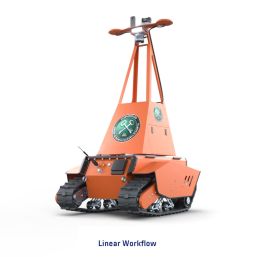
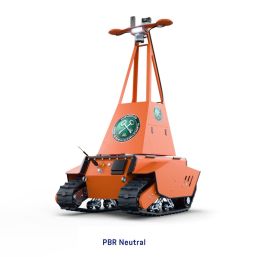
- increase contrast of the image in the mids and fixing the sometimes washed out look of purely linear renders
- increase dynamic range the bright highlights providing a bit more of a human eye experience
- preserve saturation and color accuracy which is important for product rendering where colors from printed labels
Comparison with Linear workflow, with PBR Neutral
Nuke Gizmo Parameters
The nuke gizmo is based on a Blink script implementation of the original algorithm and can be used in the foundry nuke as an alternative to an OCIO workflow.
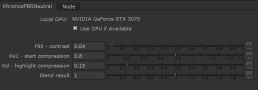
The gizmo provides 4 parameters for optional finetuning of the image and automatically clamps negative input values which could otherwise result in unwanted artifacts. The default values were defined by Khronos group and are a good starting point.
The F90 paramter can be used to increase the contrast in the lower and mid value range of the image. A value of 0.0 disables the effect and a value bigger than 0.04 is increasing the effect.
The Ks1 parameter is by default 0.8 and can be used to control when the highlight compression starts. According to the paper it starts at Ks1-F90 which is 0.76 with default values.
The Kd parameter controls the amount of highlight compression. Lower values than 0.15 increase the compression even more.
The blend result paramter can be used to blend the effect with the original image and was not part of the original formula. A value of 1 means the formula is used, a value of 0 disables the effect entirely.
More Information about PBR Neutral
If you want to read more about Khronos PBR Neutral you can find them on Khronos.org
and on the official github page

Free 3D-Model Vitra Plastic Side Chair DSR
Free 3D-Model Vitra Plastic Side Chair DSR
High Quality 3D-Assets are the basis of every realistic 3d-Rendering. This free 3D-Model of the vitra plastic side chair DSR is a timeless furniture to be added to your scene.
formats:
- 3ds max
- fbx

Free 3D-Model Panton Chair
Free 3D-Model Panton Chair
The popular Panton Chair is a classic chair designed by Verner Panton. This free 3D-Model is great for any interior 3d visualization.
formats:
- 3ds max
- fbx